Tampilkan postingan dengan label Software. Tampilkan semua postingan

Free Windows 7 Tools You Have to Try

The smartphone marketing phrase "there's an app for that" got me thinking -- isn't there an application for pretty much anything and everything I need on my PC? And aren't those apps typically free? Yes, pretty much.

Here are eight of my recent Windows tools discoveries. Let other readers know the ones you've found in the comments section below.


Windows 7 tool No. 1: Evernote
This tool is one that even Mac users will appreciate. I've been using Evernote for the past few weeks to take notes. I brought it to Microsoft's campus for the recent MVP Summit, for example, and CEO Steve Ballmer's keynote even included a reference to note-taking applications. OneNote is the main Microsoft app for that purpose, so it's funny that a Microsoft guy like me has taken up the Evernote flag.

I first discovered Evernote for my Android smartphone and found it let me easily add recorded sound, pictures, and videos to my notes, then sync them to my laptop back at the hotel and to my PC at home. In fact, you can capture pretty much anything you see or hear in the notes, then access the notes from nearly every computer, smartphone, and tablet on the market: Windows, Mac OS X, iOS, Android, and so on. And your notes are searchable. Great job!

Windows 7 tool No. 2: Easy Duplicate File Finder
How many copies of the same picture, file, or video do you have on your PC? In my case, I must have two or three copies of some items, but I have no idea where the extras are. I'm also afraid if delete it in one place, I'll later discover that was my only copy of that particular file -- so I keep adding copies. I also have copies on one external drive after another because I gotta have backups. Easy Duplicate File Finder helps locate all those duplicates quickly and lets you resolve them easily and safely.

Although it's not free, you might consider instead DataStor's $99 Professional Desktop Protection 2010, which both backs up and deduplicates those files on your desktop and any external connected drives.

Windows 7 tool No. 3: FastStone Photo Resizer
When I move pictures off my camera, I know I could (and should) rename them, but I don't do so a lot of the time. With FastStone Photo Resizer, I can rename and resize pictures. Plus, I can add watermarks and text, as well as crop, rotate, and change the color depth of my photos.
If you simply want to rename files, you might try File Renamer Basic instead.

Windows 7 tool No. 4: Desktops
Created by Microsoft engineers, Desktops lets you take better advantage of your monitors by providing as many as four virtual desktops to work with.
In addition, you might like some of the other tools that co-creator Mark Russinovich has developed, including ZoomIt (for an easy zoom teaching application) and BgInfo (to show details about the system right on the desktop with an overlay of text).

Windows 7 tool No. 5: TeamViewer
I stumbled upon TeamViewer at a download site. It's a screen-sharing and file-transfer application that provides remote access to a second computer so that you can help tech-challenged relatives. There are other tools like this on the market, but TeamViewer was easy to install and work with; plus, it's free.

Windows 7 tool No. 6: ClipTraining
This is my company's tool, but it's worthwhile. ClipTraining has 100 videos (five hours' worth) on Windows 7 task-based training, plus instructions for Office and other applications.

Windows 7 tool No. 7: AllMyApps
Here's a good idea: Take all the applications you normally need to download and install one by one, but instead, choose them all from one source, then download and install them in one group. AllMyApps has more than 1,600 apps available.

Windows 7 tool No. 8: Dropbox
The cloud-based Dropbox tool lets you access its included free 2GB of space (you can rent more if needed) to establish offsite backups and transfer data easily from one system to another. Dropbox is also a great collaboration tool; unlike with an FTP site, you can simply drop a file in the Dropbox folder on your system and have it sync with others to which you've granted access. It works in Windows, Mac OS X, iOS, Android, and other platforms.

There are, of course, many tools available for Windows users. My InfoWorld.com colleagues and I have covered some of them in other stories:


Review of Registry Cleaners in 2011

 Nowadays, the role of computers is becoming increasingly important in the daily life of everyone of us. Therefore, the cares about our machines are unavoidable. That's why instead of buying an expensive hard drive or constantly searching for technical support, we could take care of our computer's "health" with the assistance of Registry Cleaner.

I suppose, most of you know that one of the main computer's component is the system registry, which is an integral part of the operating system. Registry is that part of the system that stores information in the time and if it is necessary, it performs logical processing on it. As longer you use your computer, as more information the system registry collects. Consequently, its work is complicated and it needs more time for "thinking" and action. In this line of thoughts, cleaning the system registry is particularly important task that should be periodically performed.

I am going to introduce a few Registry Cleaners in this article, which are going to be updated in 2011.
Registry Winner is one of the first multilingual Registry Cleaners on the market. It makes an excellent diagnostic of your computer and carefully repairs all existing errors in the registry. The latest version is 6.1.11.30. It has a small size - only 2.75 MB. It works with Windows NT, 2000, 2003, XP, Vista, 7. Registry Winner was introduced to the market at the end of November 2010 and is expected to gain popularity in the new year of 2011.

RegiCleanse is able to cope with 99% of errors occurring on your computer, which lead to slow performance of the PC. The simple design of that software allows many people to enjoy it and deal with it. The latest version of this program is RegiCleanse 3.1. Its size is 4.5 MB. It works with operating systems Windows 98, ME, NT, 2000, 2003, XP and Vista.

Registry-error-cleaner is online source for downloading the latest Registry Cleaners. It provides safe and efficient registry cleaning. Its size is extremely small - 412 KB. Registry-error-cleaner is compatible with Windows 98, 98.SE, ME, NT, 2000, XP, Vista, 2003 and Windows 7. And the most important is that it can be downloaded free.

As you can see, the Registry Cleaner 2011 is expected to carry out its basic activities: to deal with unnecessary and duplicate files on your hard disk, to delete incorrect registry keys, to honor the memory of dusty files in the temporary Internet directory, to set the network functions and to check file associations and many other useful actions. The main feature for Registry Cleaners 2011 must be the compatibility with Windows 7, which is the most popular Microsoft product.


Chrome 10 brings Flash sandboxing and new settings UI

Google has issued a new stable release of the Chrome Web browser and is rolling it out to users. The new version introduces some noteworthy JavaScript performance enhancements, new plug-in security features, improved support for synchronization, and a new user interface for managing the browser's settings.

Plug-ins have historically been a major attack vector for Internet malware—particularly Adobe's Flash and Acrobat plug-ins, which are notoriously insecure. Rather than seriously addressing the issue, Adobe has capitalized on the poor security of its own software by bundling unwanted McAfee crapware in Flash and Acrobat updates.

Chrome 10 introduces support for Flash sandboxing, which is now enabled by default on Windows Vista and Windows 7. The feature, which attempts to limit Flash's access to sensitive system functionality, is one of several key plug-in security features that Google has delivered since it started collaborating with Adobe almost a year ago. Chrome 10 has also gained support for selective plug-in blocking and automatically blocking out-of-date plug-ins.

A new settings panel introduced in Chrome 10 offers a big usability boost. Instead of displaying its settings in a native-looking dialog window, the browser now shows its settings in a regular tab with a more web-like presentation. It's a cleaner and more intuitive layout that is also consistent across operating systems.

Google has continued to advance Chrome's sophisticated JavaScript engine. The latest optimizations in Chrome 10—which incorporate Google's "crankshaft" technology—reportedly produce a 66 percent improvement in the browser's score on Google's own benchmark. This performance increase is largely confined to complex JavaScript use cases where there is a lot of repetitious activity under the hood.

Users can download Chrome 10 directly from Google's website. The new version is already being rolled out to existing users through Chrome's update system.


The most modern browser there is: Internet Explorer 9 reviewed


When Microsoft first introduced Internet Explorer 9 at PDC in November 2009, it didn't show much. A few benchmarks, some talk about the technologies that the browser would use, and a little information about the direction that development would take. But it was a significant event nonetheless. After years of playing catch-up—the stopgap Internet Explorer 7 added tab support, and then the solid Internet Explorer 8, which offered little in the way of support for new Web innovations—Microsoft was starting to position its browser not only as good, but able to take on the competition and be best in class.

And with the release today of Internet Explorer 9, the company has gone on to deliver just that—IE9 is the most modern browser there is.

Microsoft set out to do four things with IE9. The browser had to be fast, it had to be standards-compliant, it had to be trustworthy, and it had to put the focus on sites and Web content, rather than the browser. Ars has been following the browser's development since the first public preview in March 2010, with extensive coverage of the beta and release candidate, but those major points are still worth looking at.

Focus on sites

Internet Explorer 7, and then Chrome, have ushered in a trend for stripped-down browser interfaces. Internet Explorer 7 ditched the menu bar by default (though this default was later changed), and Chrome took this design a step further by putting its tabs on top and all but abandoning the toolbar concept. Internet Explorer 9 builds on—or rather, subtracts from—the work done in previous Internet Explorer versions. Its interface is stripped down, clean, and simple. The intent is that the site should be the focus, not the browser frame. So tabs have moved alongside the address bar—though they can be moved below it if desired—the status and menu bars are gone by default, the toolbars are gone by default, and the icons on the buttons use new artwork.


Slimline new interface
The new pinned sites feature—allowing sites to be docked to the taskbar and for site developers to give those taskbar icons custom jump lists and overlays—extends this concept further. For example, if you pin Facebook to your taskbar, you get instant access to Facebook itself by clicking the icon, direct access to your news, messages, events, and your friend list through the jump list, and an icon overlay to show when you have new messages. Together, these make using Facebook more streamlined, and make it feel much more like a real application.

Much less annoying
Overall, it's a good look that does what it's supposed to—it keeps out of your way. While I think it will work well for many, it does still fall some way short for those placing more extreme demands, however. It lacks any direct equivalent to the "pinned tabs" found in Firefox and Chrome; these tabs occupy less space than regular tabs, making them convenient for persistently-open sites. The new tab management facilities in Firefox 4 also have no analog in Internet Explorer.


 I can't believe we had to wait so long for this.
And oh yeah. There's a download manager included. At last.

High performance

Browser performance is a complex, multifaceted thing. Headlines are made with JavaScript performance, but there's more to a browser than its scripting: reading and understanding HTML, drawing graphics on-screen, laying out text, and so on. Work has been carried out in all these areas to make IE9 a truly fast browser. Chief among these improvements are a new JavaScript engine, named Chakra, and the use of the GPU for handling drawing tasks. In both cases, these are designed to exploit the capabilities of a modern PC. Chakra is multithreaded, compiling and optimizing JavaScript in a secondary thread, while allowing the primary thread to start executing the script directly in the meantime. The GPU acceleration makes use of hardware accelerated Direct3D rendering (via Microsoft's Direct2D layer) to handle all the browser's drawing tasks.

Mozilla and Google are both developing similar hardware acceleration for Firefox and Chrome, respectively. Chris Blizzard, director of Web Platform at Mozilla, even tweeted that he bet Firefox would ship GPU acceleration first. He bet wrong; Internet Explorer 9 is the first stable browser to reach the market with extensive, broad-based hardware acceleration. Firefox 4 (due in a few days or weeks) will add GPU acceleration support too, and Chrome 11 (currently in beta) should provide broad GPU acceleration too—but as things stand, Microsoft is going to be first to market with a widely accelerated browser. The company has raised the bar on what's expected in a browser, and it's no great surprise to see Mozilla and Google go down a similar path.


IE8's score is so bad it's literally off the chart—about 3,500 milliseconds.
We're going to perform in-depth browser benchmarking once Firefox 4 is final, but regardless of benchmarks, Internet Explorer 9 feels very fast. In the end, that's perhaps what matters most: even scripting-heavy Web applications render quickly, animate smoothly, and perform well.

The hardware acceleration also makes pages look good. For drawing text on screen, Microsoft is using its new DirectWrite subsystem. DirectWrite strives to reproduce fonts more faithfully than the system used in older versions of the browser; it tries to create something closer to the font designer's intent, rather than shoe-horning the letter shapes into the pixel grid used on-screen. Mac OS X (and Safari on Windows) also takes this faithful approach, though Apple seems to take it even further than Microsoft has. This has divided opinions during the beta process, with some finding the browser makes certain text look very fuzzy, especially for text that isn't black-on-white. With the video card and monitor I use, and the sites I visit, it looks fantastic.

Standard support

Microsoft's mantra throughout IE9's development has been "the same markup." As anyone who's written a webpage will attest to, the normal approach to Web development is: write the page once, check it out in a bunch of browsers, then tweak it endlessly so that it actually looks the same—or at least, passably similar—in every browser you care about. Standards compliance is the best weapon Web developers have against this kind of proliferation. To that end, Microsoft has taken great strides in making IE9 a standards-conformant browser. This means not only making its behavior match against the specification; it also means working to ensure that the specifications themselves are clear, bug-free, and have proper tests to go with them.

Sadly, the same markup still does not always yield the same results.
To that end, Internet Explorer 9 contains broad support for a range of new standards that have been lumped under the HTML5 banner; plug-in-free video and audio, bitmap graphics using canvas, vector graphics using SVG, embedded fonts using WOFF, and so on. This work has made the browser a far more attractive platform for developers that's far closer to the state of the art.

In many ways just as important as the browser's support are the many hundreds of tests that Microsoft has submitted to the World Wide Web Consortium (W3C), the group that creates Web standards. These tests allow easy comparison of individual features in different browsers, to verify that they do all implement the specification, and more to the point, implement it with the same, predictable behavior. Over the long term, these test suites will help browser vendors minimize the differences found in their browsers, allowing developers to spend more time creating exciting websites, and less time trying to get their pages to look correct.

In contrast to the other browser developers, Microsoft's approach to standards support has been conservative. The company doesn't want to ever have to remove or fundamentally modify a feature that it has implemented due to changes in specifications. As such, it has taken a policy of only implementing those specifications that are unlikely to undergo any further changes. As a result, Internet Explorer 9 will compare unfavorably on sites like HTML5 Test, but Microsoft views this as far preferable to making developers have to alter their real-world applications just because a specification has changed.

Trustworthy browsing

Preventing advertisers and analytics firms from tracking one's progress around the Web has become something of a hot-button issue. Microsoft's approach to this is two-fold. Tracking Protection Lists (TPL) allow users to opt into lists published by privacy organizations to block such tracking mechanisms. The company has also slipped in a new mechanism just in time for release, too; if any TPL is in use, the browser will also send the Do Not Track header, also being sent by Firefox 4.
This serves as a belt-and-braces approach to privacy protection. TPLs are active protection; they prevent the browser from downloading various tracking devices (mainly JavaScripts and single-pixel images) completely. What isn't downloaded can't be used to track. The Do Not Track header is passive. It relies on trust—the Web server the browser is visiting must notice that the header is there, and then respect it—and currently has essentially no real-world value. There is, however, the possibility that it will gain Federal Trade Commission or legislative support, at which point it might start to gain some meaning.

The approach of sending the header while using a TPL does not seem ideal; different TPLs might block different kinds of tracking (for example, one might block advertisers, another might block analytics), but the Do Not Track header will be sent to everyone, regardless of the intent of any installed TPLs. That's not an issue now, as the header doesn't have any real meaning, but it could become an issue in the future.

Beyond that, the inclusion of ActiveX blocking will be welcome to those who dislike Flash but have to keep it installed for compatibility. It's simple, but effective.

Some new trust features will only come into their own now that the browser has been released. In particular, the browser now attempts to warn about unsafe downloads. Any application that is downloaded has a reputation. If lots of people download the same program, it's probably safe, so it has a good reputation; if you're the only one to ever download it, it has a much higher chance of being something nasty, so its reputation is bad. Or at least, that's the thinking. Attempts to download programs with bad reputations will earn an additional warning. The true value and efficacy of this system will only really become clear once the browser is in wide use.


A new development process

With these goals came a new way of developing the browser. Instead of producing a beta or two and then perhaps a release candidate, in March 2010 Microsoft said that it was going to release what it called "Platform Previews" every eight weeks or so. These previews would have the underlying improvements to the browser's core, giving Web developers the opportunity to experience both the greater performance and greater standards compliance that each new preview provided, but didn't come with any real browser interface.

This site has long criticized Microsoft's browser development approach. The combination of infrequent releases and relative lack of access during beta periods made it difficult for developers to gauge the direction that the company was headed in, and so it was hard to provide timely, relevant feedback. Nor were we confident that the preview releases would do enough to redress this issue. Now that IE9 has shipped, it's fair to say that the previews did the job admirably. Microsoft showed steady progress, introducing substantial new features such as support for the HTML5 video and audio tags, canvas graphics, and WOFF fonts. Each new release made great strides in performance, too.

Many thousands of bugs were filed against the browser, and they were all examined and addressed (though not necessarily fixed). Microsoft says that the bugs that were filed were high quality, too, with something like 50 percent of issues raised proving to be legitimate. In previous Internet Explorer development periods, the beta release would be the first opportunity to actually test the browser's rendering engine. With IE9, we already knew that the engine would be high quality thanks to the preview program. With the previews, Microsoft has shown that not only can it develop a high quality browser; it can also do so in a way that effectively engages with the community.

The company has also provided a solution of sorts to the desire to test and experiment with more unstable specifications. Prototype implementations of features that are still in flux can be installed, giving developers the access they need to provide the experimentation they need to do, without running any risk of real sites actually depending on these features. These prototypes have been updated regularly, and their update schedule is governed by the frequency with which new drafts of their specifications are developed, rather than any fixed eight-week interval.

And now the bad bits

The biggest problem, and the biggest risk, faced by Internet Explorer 9 is that of compatibility. Not with websites—it does a great job there—but with operating systems. Because of its use of Direct2D and DirectWrite, which are only available on Windows Vista and Windows 7, it does not run, at all, on Windows XP. Though Windows XP's market share is declining on the back of strong corporate uptake of Windows 7, it's still the most common version of Windows. And it can't be used with Internet Explorer 9.

This wasn't a bad decision. The performance improvements made by the use of DirectWrite and Direct2D allow a new class of Web application to be developed. They greatly extend the range of what is possible and practical to do on a website. Platform security features that Internet Explorer 9 leverages also make the switch to more modern operating systems desirable. Some of the things that make IE9 a better browser are things that simply do not exist on Windows XP.

Nonetheless, it's plain that this will hamper adoption of the new browser. Firefox 4 includes Direct2D (and, optionally, DirectWrite) on platforms that support it, but it will still run on Windows XP; on that operating system it falls back to software rendering. This makes it slower, certainly, on that operating system. But it will still work. Windows XP is declining, and it's understandable that Microsoft has chosen not to target a system that will be a decade old this October. But it does mean that Microsoft may struggle to win over users.

It's also a little disappointing that the 64-bit version is less polished than the 32-bit version. It can't be made the default browser, and it doesn't include the new, high-performance scripting engine. Microsoft has long argued that 64-bit browsing isn't necessary; most plug-ins are only 32-bit, and so, the argument goes, browsing must be a 32-bit activity. This is unfortunate. One, it leads to a certain chicken-and-egg problem: there's little incentive to develop 64-bit plug-ins since nobody uses a 64-bit browser due to the lack of plug-ins (though Adobe Flash 11 is likely to include first-class 64-bit support, resolving one of the big stumbling blocks). Making the 64-bit version first-class—the same features and performance as the 32-bit version—and ensuring that, at least, Microsoft's own plug-ins (such as Silverlight) were supported would go a long way towards making 64-bit browsing viable. This is, after all, much the same route as the company took with Office.

The reason that 64-bit is desirable is particularly because it offers the potential to strengthen certain anti-hacking mechanisms. Address Space Layout Randomization (ASLR) depends on the ability to change the in-memory layout of things like DLLs. In a 32-bit process there are only a limited number of random locations that can be chosen. 32-bit processes are also more vulnerable to anti-ASLR measures such as "heap spraying" (wherein a large proportion of the browser's memory is filled with malicious code to make it easier for an attacker to trick the browser into executing it). 64-bit is by no means a panacea, but it does strengthen these protection systems. For something that is as frequently attacked as a Web browser, this kind of defense in depth is desirable.

This is especially true as the 32-bit plug-in issue is not insurmountable. Safari on Mac OS X is a 64-bit process on suitable systems. It gets around the plug-in problem by running plug-ins in separate 32-bit processes. This is an approach that Microsoft could, and should, take.

I suspect that IE9 will also struggle to win over the geek demographic. It's a very solid, effective browser, but the lack of "power" features (such as the richer tab handling, automatic session restoration, and extensive extension support) means that this community will likely be better-served by something like Firefox. Though such users are themselves a minority, they are nonetheless influential—they spearheaded Firefox's adoption, acting as advocates for that browser, and are doing the same for Chrome (though in the latter case, Google's substantial advertising budget is also a big help). In the Internet Explorer 5 days, these were the same people encouraging the abandonment of Netscape Navigator. As good as Internet Explorer 9 is, I don't think it's going to be enough to win them back.

There are also lingering questions surrounding the question of what happens next. The new development process was successful, and has built up a lot of momentum, but the company is still, for the moment, keeping quiet about the next move. If there will be no browser version for another two years, then in spite of all IE9's remarkable progress, the game is lost. There's already a good chance that Firefox 4 will leapfrog it in most regards when it is released in the next week or two; its time at the top will be short-lived. The world of browser development is fast-paced.

In an ideal world, the platform preview program will continue, aiming towards the release of, say, IE9.5 or IE10 in six to eight months from now, certainly no longer than a year. This would allow Redmond to keep pace with the Mozilla and Google developers, and one might even say that it would herald the welcome start of the third browser war. Certainly, the company doesn't want to let the momentum flag; it knows it's onto a good thing with the previews. But as of right now, all that exists is rumor and conjecture. Internet Explorer Vice President Dean Hachamovitch is giving a keynote presentation at next month's MIX conference in Las Vegas, and while this is expected to focus on IE9 for Windows Phone 7 (due later this year), it's hoped that he will also give a look forward at the future of the desktop browser.

Internet Explorer 9 is a triumph. Not perfect, but still a first-rate product. Microsoft really has built a better browser here. It's arguably the most modern browser on the market—for a few weeks, at any rate. If you use Internet Explorer, and you're not stuck on Windows XP, you should switch. Even if you don't use Internet Explorer, you should try it out. Internet Explorer 6 and 7 are embarrassments that you should be ashamed to use. Internet Explorer 8 is acceptable, but no more than that. Internet Explorer 9 is the anti-IE6. It is an excellent browser that can be used with confidence and pride.


28 iPad 2 Tips and Tricks

Your new iPad 2 might not be as full-featured (or as complicated) as a laptop or desktop PC, but a few neat tricks are still hidden between the surface. Read on to learn how to secure your iPad, sync your bookmarks, and more.

Download the free iPad User's Guide: You may have noticed that your iPad didn't come with a big printed manual--that's not Apple's style. However, you can download the PDF version of the iPad User's Guide from Apple's Web site, or you can read it in iBooks if you have that installed (iBooks is available as a free download in the App Store). Make sure to download the manual for iOS 4.3.

Take a free guided tour: Apple provides video tours for each of the preinstalled apps, so you can get a good look at how to use them.

Use the Side Switch: You can use that neat switch on the side either to enable and disable audio alerts (this doesn't affect video/audio playback) or to lock the screen's orientation in portrait or landscape mode. You can toggle which function is assigned to the side switch by opening Settings from the Home screen, selecting General, and choosing the function you want under the 'Use Side Switch to' heading.

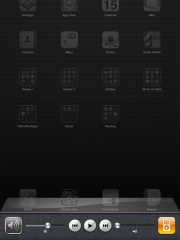
Multitask in iOS: You probably already know that you can press the Home button twice to bring up a list of currently running or suspended apps. However, you can also swipe the multitasking bar left to right to quickly access audio/video playback controls, a shortcut to the iTunes app itself, and volume controls. Also, when you choose whether the Side Switch should mute alert sounds or lock the screen orientation (see the item above), the function you didn't choose will appear in this shortcut bar.


Speed up your sentences: Double-tapping the spacebar while typing a message will type a period and then a space.

Don't let AutoCorrect mess you up: If you don't like the option AutoCorrect gives you, reject it by finishing the word as you prefer, and then tapping the suggestion. If you want to use AutoCorrect's choice, just type a space or punctuation mark, or tap Return, the moment it pops up.

Secure your backups: You can encrypt your iPad's backup data in iTunes. Just open the iPad in iTunes, click the Summary tab, and check Encrypt iPad backup under the Options heading.

Prevent automatic sync once: Sometimes you don't want to sync your iPad when you connect it to your computer. In this case, hold down Shift-Control (or Command-Option, on a Mac) in iTunes while plugging your iPad in, and iTunes will skip the automatic sync just once. Alternatively, you can safely interrupt a sync by dragging the unlock slider while the iPad is midsync.

Toggle data roaming: If you're using a 3G iPad, you can turn data roaming on in the Settings, Cellular Data menu in case you want to try receiving cellular Internet through a different provider (fees may apply). You can also check your data usage by going to Settings, General, Usage.

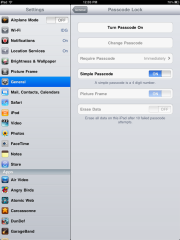
Make your passcode more complicated: iOS defaults to a four-number passcode, but you can turn it off by going to Settings, General, Passcode Lock, Simple Passcode. Now you can use any full keyboard password to lock the iPad. The password also helps to encrypt your mail and attachments on the iPad, so you probably want to make it safer than a four-digit number.


Set the iPad to self-destruct in 10 seconds: Okay, not really--but you can set the iPad to erase all data after ten failed passcode entry attempts by checking the Erase Data option under Settings, General, Passcode Lock.

Tweak AutoFill: You can choose to enable Safari's AutoFill feature in Settings, Safari, AutoFill. From there, you can tell Safari to fill forms automatically either by using your specified contact information or by remembering the names and passwords you've entered while logging in to Websites in the past.

Sync your bookmarks: You can use iTunes to sync your iPad's Safari bookmarks with your PC's Web browser. Open the iPad tab in iTunes, click the Info tab, scroll down to the Other heading, check Sync bookmarks with, and choose your preferred browser.

E-mail photos: The easiest way to e-mail photos from an iPad is to open the Photos app, select a photo, press the button in the upper-right corner (the rectangle with the arrow, not the trash button), and choose Email photo... to send.

Know your Web links: You can check a linked word's actual destination URL by touching and holding down on the link--it's a perfect way to sniff out phishy links.


Choose an app for e-mail attachments: You can open a file attached to an e-mail message by tapping the attachment in Mail, but if the default app isn't the one you want to use, you can press and hold and wait for a menu that lets you select an app.

Use the iPad as a picture frame: Not for physical photographs, silly. You can press the Picture icon in the lower-right corner of the Lock screen to have the iPad display its available photos.

Show traffic conditions: Open Maps, press the dog-eared page icon in the lower right, and then turn the Traffic overlay on. If your iPad has an Internet connection, Maps will show real-time traffic conditions in the displayed area. Green means traffic is going at the posted speed limit, yellow means traffic is slower than the posted speed limit, and red means traffic is stop-and-go.


Share podcasts with friends: Listening to a podcast that you think a friend would like? You can share the link while you're listening to it by pressing the Email button while it's open.

Don't forget your downloads: You can immediately see if your iTunes account is due for any incoming downloads by opening iTunes on your PC, clicking the Store menu, and selecting Check for available downloads. This trick can come in handy if your download process is interrupted, or if you missed some bonus iTunes content that came with an album you purchased.

Turn on Universal Access: You can enable options such as closed-captioned movies, VoiceOver screen reading, zoom magnification, and inverted white-on-black text by selecting the iPad in iTunes, opening the Summary tab, and clicking Configure Universal Access under the Options heading.

Forget Wi-Fi networks: So you accidentally connected to a network once, and your iPad remembers it for life--whether you like it or not. On your iPad, go to Settings, Wi-Fi, and find the network under the 'Choose a Network' heading. Tap the blue arrow next to the network you want to remove, and tap the button on the top that says Forget this Network.

Specify your Spotlight searches: The iPad uses Spotlight for its built-in search functions, and you can tweak it to your needs in Settings, General, Spotlight Search. If you have a lot of data on your iPad, for example, you can selectively disable search in different categories (Contacts, Applications, Audiobooks, Notes, Events, Mail, and so on) that you don't use so that your desired results show up faster. You can also simply change the order in which the search-result categories display by dragging them up and down, so that your more frequently used search categories show up at the top of the page.

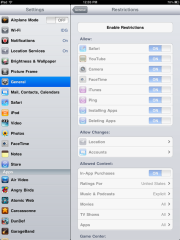
Turn off in-app purchases: Go to Settings, General, Restrictions and tap Enable Restrictions to selectively enable restrictions that apply to your apps, content, Game Center, and more. If you're worried about other people breaking your bank account on in-app purchases, just disable In-App Purchases under the 'Allowed Content' setting.


Switch up the fetching frequency: Your iPad automatically grabs new data, such as incoming e-mail. However, the iPad periodically activates apps that don't support iOS's Push feature so that they can go "Fetch" new data--which uses the tablet's battery life. You can tweak your Push and Fetch settings in Settings, Mail, Contacts, Calendars, Fetch New Data.

Change your e-mail signature: Don't be one of those people who leave the default 'Sent from my iPad' signature on all their messages. Change it in Settings, Mail, Contacts, Calendars, Signature to...well, anything but that.

Swap the search engine: Too good for Google? You can change Safari's default search engine by going to Settings, Safari, Search Engine. Alas, you can only choose from Google, Bing, or Yahoo--no bringing back AltaVista for you.

Take a screenshot of whatever is on the screen: Press Home and the sleep/wake button simultaneously. The screenshot will automatically appear among your photos.


Seven Cool Apps at SXSW

Not all of the companies that developed these apps are exhibiting at the show, but they're all here. Some are throwing lavish coming-out parties, while others are just riding wave of buzz. But all of them are doing something creative, meaningful, and cool in the social/mobile/location-based space.

Here are seven apps that intrigued me.

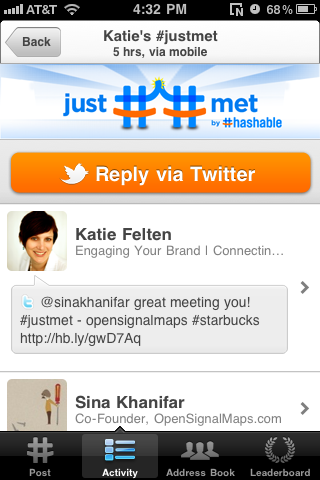
Hashable: A mobile networking app (iPhone and Android) that lets you exchange virtual business cards with people, track your new introductions, and track who your new acquaintances are meeting. Runs on Android and iPhone.


GroupMe: This group messaging app allows you to form a virtual, private chat room from people in your smartphone's address book. The company has apps for Android, BlackBerry, and iPhone.

Foodspotting: This restaurant suggestion website and iPhone app lets you take pictures of foods at restaurants and post them for the Foodspotting community. The pictures are plotted on a map.

IntoNow: The app lets people share their favorite shows with their friends by taking a picture of the TV screen with their smartphone.

Quora: At Quora you can post a question and members of the community answer your questions. If you provide a really good answer to somebody else's question, other users will vote your answer up-in short, you will be loved.

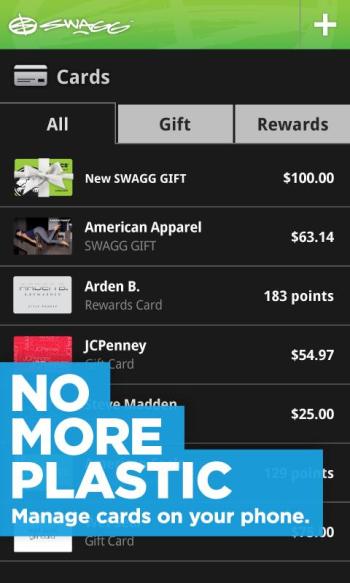
SWAGG: This (iPhone and Android) app keeps all of you coupons and gift cards well organized in your smartphone so they're there when you need them. You also don't have to fool with paper clutter. SWAGG has deals with 3,000 retailers so that users can get special discounts.


Yobongo: This location-based chatting app lets you know when other Yobongo users are nearby and lets you initiate chats with them. Right now the app is only available for iPhone (boo), but it's one with some immediate usability in the real world. 


Microsoft launches IE9 web browser

Microsoft has launched the finished version of its Internet Explorer 9 web browser.
The company said IE9's graphics handling, security and privacy features put it on an even footing with Firefox, Chrome, Safari and others. 

The release comes as Microsoft's browser market share is being whittled down by a growing roster of rivals.Competition is also coming from non-browser traffic generated by mobile phones and tablets.
 
Share statistics
 
Microsoft said one key feature in IE9 was tools to stop people being tracked as they move from site to site. This information is often gathered by commercial firms to tailor ads to the specific habits of web users.
In addition, said Microsoft, separate tools in IE9 keep an eye on downloads so they can spot when viruses and trojans try to sneak onto a computer.
IE9 also has hardware acceleration built in so it can call on the power of a PC's graphics card to display sites in more detail.

The launch comes at a critical time for Microsoft as, one survey suggests, its Internet Explorer browser is suffering a long-term decline.

While reliable figures on browser shares are tricky to compile, estimates from web analysis firm Net Applications suggest that IE has about a 56% share of the global market. The same study suggests Firefox has about 22%, Chrome 11% and Safari 6%.

In a separate study, figures gathered by security firm ZScaler suggest that up to 20% of web traffic is being generated by apps on smartphones and tablets and is not going through a browser.
Ovum analyst Richard Edwards said: "We believe the next battle ground for the browser wars will be fought not on the desktop, but on the smartphone and tablet."

"This is where Microsoft's existing browser offering still has a lot of catching up to do," he added.
Microsoft said the 40 million test, or beta, versions of IE9 that had been downloaded made it the most downloaded of all time. Already, it said 2% of Windows 7 users were running the latest version.
IE9 does not run on Windows XP and can only be used with Windows 7 and Vista.